


Microsoft Edge™
Set up is required in Microsoft Edge™ to allow full functionality when using Availity revenue cycle management applications, including the Availity Learning Center.
Access Edge settings
Clear cache, add approved sites, and add allowed pop-ups in the Cookies and site permissions page in Edge settings.
 in the upper-right corner of your browser, and then select the
Settings option.
in the upper-right corner of your browser, and then select the
Settings option.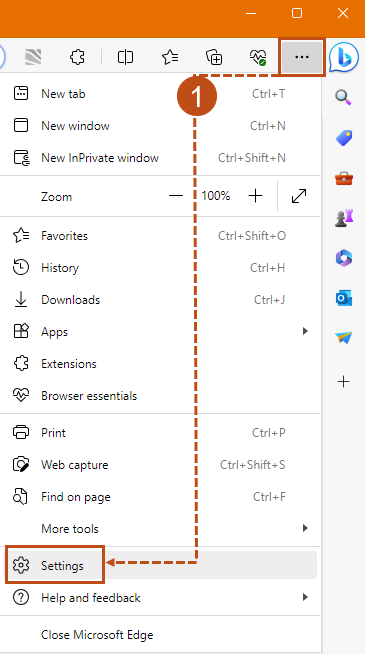
Configure pop-up blocker settings in Microsoft Edge
Set up internet browsers: Allow pop-ups and add trusted sites to Microsoft Edge.
Availity Essentials and the Availity Learning Center (ALC) use pop-ups to display information or sites. Set up is required in Microsoft Edge to allow that functionality.
-
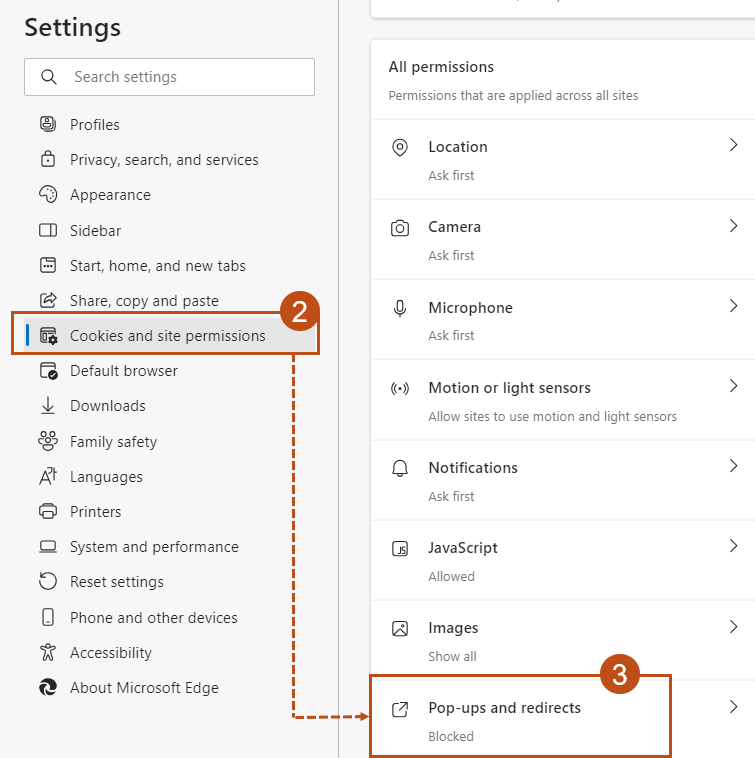
Select Cookies and site permissions in the left
panel.
Troubleshooting: If the left panel is collapsed, select the Settings menu button
 in the upper-left corner of the page, and then select
Cookies and site permissions.
in the upper-left corner of the page, and then select
Cookies and site permissions. -
On the Cookies and site permissions page, scroll to the All
permissions section, and then select Pop-ups and
redirects.
-
It is recommended to enable Block (recommended) and then
make sure to add the Availity URLs as allowed sites.
Note: The toggle circle is on the right-side of the oval
 when the pop-up blocker is enabled.
 - In the Allow section, select Add.
-
In the Site field, add one of the below URLs, and then
select the Add button.
-
https://apps.availity.com
-
https://essentials.availity.com
-
https://www.availity.com
-
https://learnupon.com
-
https://learnuponus.com
-
https://avcert.learnuponus.com
-
- Complete the previous two steps until all URLs are added.
Clear cache in Edge
Set up Internet Browsers: Clear browsing history and cache in Microsoft Edge.
Complete these steps to clear your Microsoft Edge™ browsing history and cache. This allows the browser to capture updated data.
-
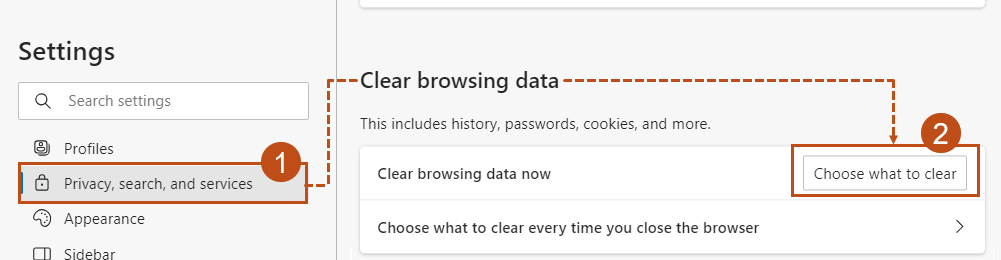
in the left panel of the Settings page, select Privacy, Search, and
Services.
Troubleshooting: If the left panel is collapsed, select the Settings and more button in the upper-right corner of the page, and then select the
Settings option.
- In the left panel, select Privacy, Search, and Services.
-
In the center panel, select Choose what to clear in the
Clear browsing data section.
- Select a time range.
-
Make sure Cached images and files is selected.
Select Cookies and other site data to clear cookies.
Notice: If the check box next to Cookies and other site data is selected, you might get signed out of websites. - Select Clear now.