Availity Certified: Provides an overview of the live learning page.
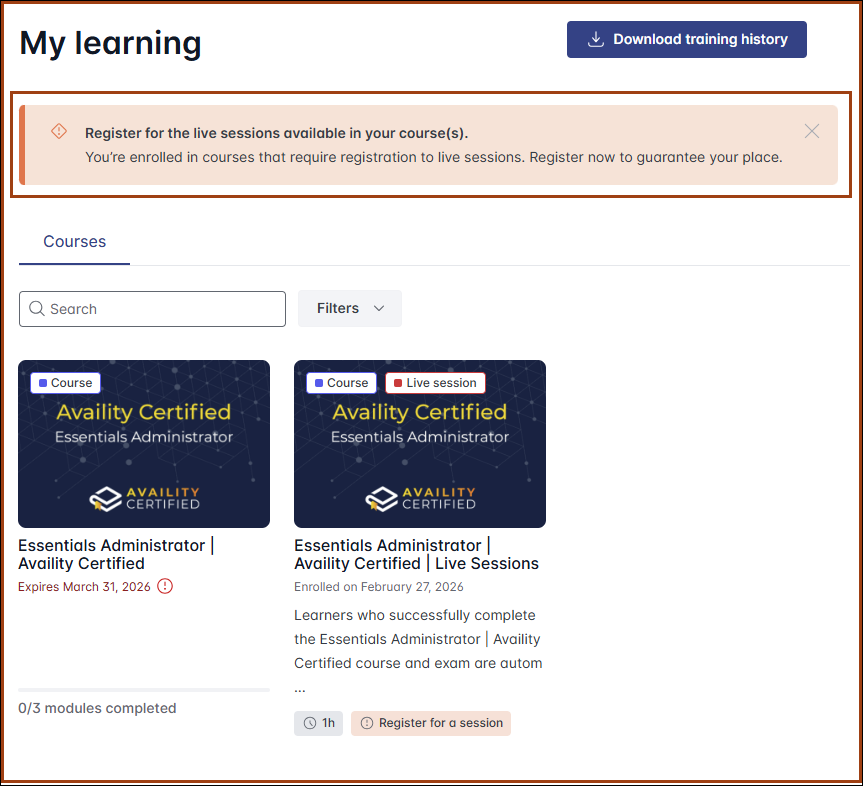
If you are enrolled in a course that includes live sessions (webinars) and have not
registered for a session, a notification displays at the top of the page prompting
you to register.
Perform the following steps to register for a live session (webinar).
In the Availity Certified portal, select Live learning at the top of the
page.
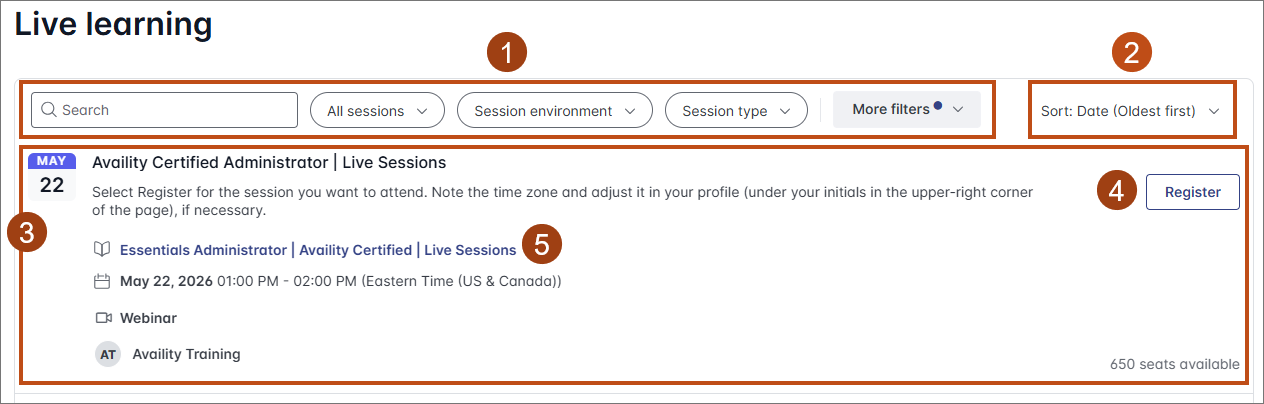
In the Search field (2), enter the name of the program
or use the More filters option to locate specific
sessions on the Live learning page.
To filter by date, select More filters, and then
specify the start and end date range.
To clear an individual filter, select X in that
filter.
To clear all filters, select Clear all.
Select the Sort: Date (Oldest first) (3) option to sort
the sessions alphabetically by title or by date.
On the Live learning page, each live session is represented by a card that
displays the session’s title, date and time, and available seats.
Select Register (4) on the course tile.
After you register, you will receive a confirmation email, along with the
link to join the session.
Note: After registration, the Register button updates to
Cancel Registration, allowing you to cancel the
registration if required.
Select the course title (5) to view the course details page.