


Notification file
Details about the notification response file.
When a submitted batch file is received, Availity attempts to recognize the file by validating the following criteria:
-
File contains content
-
Acceptable file type
-
Acceptable file format, identified by ISA in first three bytes
Batch file accepted by Availity
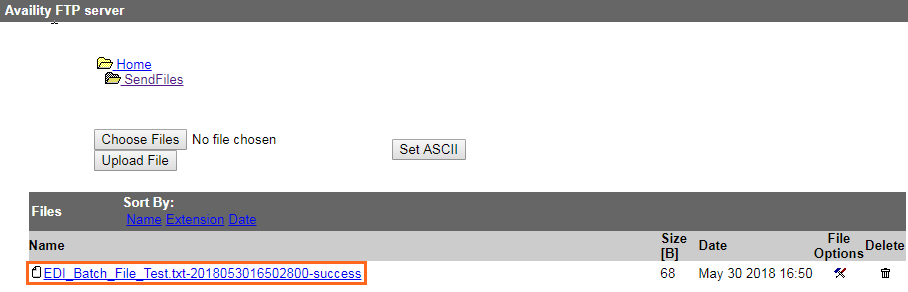
If an error does not occur at this point, the next step in validation begins and a notification file, indicating success, is delivered to the SendFiles folder. The name of the notification file is the name of the original batch file, concatenated with the Availity batch ID that assigned to the file, and the suffix -success. The batch ID is simply the date/time that the file submitted.
Batch file rejected by Availity
If an error occurs at this point, Availity does not process the batch file any further. A notification file, containing an error message, is delivered to the SendFiles folder. The name of the notification file is the name of the original batch file, concatenated with the Availity batch ID that assigned to the file, and the suffix -FAILED. The batch ID is simply the date/time that the file submitted.
To view the reason for the failure, do one of the following:
-
If you submitted the batch file through a file transfer client software, use the tools in your software to open the -FAILED file, to view the errors.
-
If you submitted the batch file through Availity Essentials or via Availity EDI site, select the tools icon
 in the File Options column of the file you want, and then
select a download option such as text/plain, under Download
and Delete Files. You can also download the file directly through your
browser.
in the File Options column of the file you want, and then
select a download option such as text/plain, under Download
and Delete Files. You can also download the file directly through your
browser.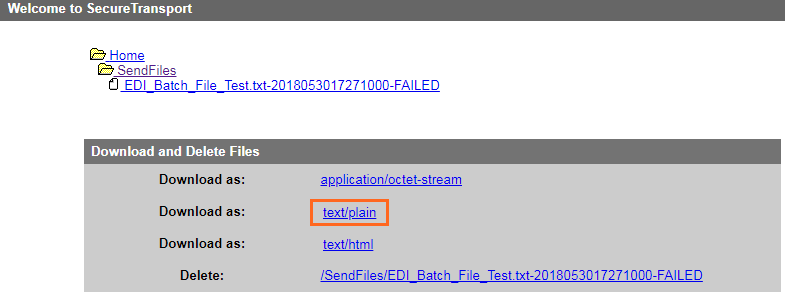
When a failed file upload occurs, one of the following error messages displays in the -FAILED file:
- Empty file received - please review and resubmit
-
-
Cause — This error occurs when the transmission file has zero bytes (is empty).
-
Troubleshooting — Rebatch the file in your PMS, HIS, or other system using a new interchange control number, and then resubmit it, ensuring the file contains data. If the problem occurs again with the rebatched transmission file, contact your vendor. Your system may be creating files incorrectly.
-
- Invalid file type received - please review and resubmit
-
-
Cause— This error occurs when the transmission file is not a text (.txt) file. It may contain one of these incorrect file extensions instead: .exe, .jpg, .tif, .tiff, .emf, .jpeg, .jff, .jpe, .png, .bmp, .bid, .rle, .bmz, .gif, .gfa, .wpg.
-
Troubleshooting — Rebatch the transmission file in your PMS, HIS, or other system using a new interchange control number and the extension .txt. If you are certain the file is a text file, but merely contains the wrong extension, you can change the file extension manually to .txt without rebatching it. Then resubmit the file. If the problem occurs again with the rebatched file, contact your vendor. Your system may be applying an incorrect file extension.
-
- Invalid file format received - please correct and resubmit
-
-
Cause — This error can occur when the first three bytes in a transmission file are not ISA.
-
Troubleshooting — Rebatch the transmission file in your PMS, HIS, or other system using a new interchange control number. Ensure the first three bytes contain ISA, and then resubmit it. If the problem occurs again with the rebatched file, contact your vendor. Your file may contain control characters that are not viewable in text format or your system may be creating files incorrectly.
-